Activity
Mon
Wed
Fri
Sun
May
Jun
Jul
Aug
Sep
Oct
Nov
Dec
Jan
Feb
Mar
Apr
What is this?
Less
More
Memberships
AI Automation Agency Hub
308.4k members • Free
AI Bits and Pieces
607 members • Free
AI Automation Society
323.5k members • Free
AI Automation Society Plus
3.4k members • $99/month
AI Video Bootcamp
17.5k members • $9/month
AI Creator Hub💰
414 members • Free
Voice AI Bootcamp 🎙️🤖
8.9k members • Free
The AI Advantage
86.9k members • Free
NextGen AI
22k members • Free
5 contributions to AI Bits and Pieces

🔥
7d •
Claude Code Ten Commands You Can Use Every Day
The slash commands that actually matter, in the order you'll need them. 1. /init First thing in any new project. Creates a CLAUDE.md file where you define how your project works, what conventions to follow, what to avoid. Without this, you're re-explaining your codebase every session. With it, Claude opens the session already oriented to your codebase. 2. /compact (full disclosure, I never use this one.) Your context window is finite. When a session runs long and context quality degrades, /compact compresses everything down to the essential points and frees up space. Run this proactively before starting a new chunk of work in the same session. 3. /clear Full reset. Wipes the conversation entirely. Use it when you're switching to a completely different task and don't want bleed from the previous conversation affecting results. 4. /cost Shows your token usage and spend for the session. I check this after long sessions to understand what's actually expensive. Helps you spot when a conversation has ballooned and you should /compact or start fresh. 5. /doctor Diagnoses your Claude Code setup. Checks your config, API keys, MCP servers, permissions. When something isn't working and you can't figure out why, run this first. Saves you from chasing config problems that aren't actually code problems. 6. /memory Between sessions, Claude Code retains what you've told it. /memory lets you view, add, or remove that stored context. Build it up over time so you're not starting from scratch every conversation. 7. /config Opens your settings. Permission modes, model preferences, allowed tools. The controls that determine how Claude Code behaves at a system level. 8. /review Runs a code review on your current changes. Point it at a PR or your working diff and Claude walks through it like a reviewer. Catches things fast. 9. /resume Pick up where you left off. Shows your recent sessions and lets you jump back into any of them with full context. I use this constantly when I close a terminal and come back the next day.

1 like • 3d
Why do you choose not to use /compact? Are you working on small enough tasks that your context window doesn't get too large?
1 like • 3d
@Matthew Sutherland - I'm only now starting into larger projects so have yet to experience this issue. I can understand the caution of wanting to double check what info is lost in the /compact in case Claude skips something important. I don't yet have enough experience with that to determine how often it happens.

🔥
15d •
🔄 Intro to NotebookLM in 5 Minutes (From Meeting Minutes to Process Flow)
In this video, we walk through a simple but powerful introduction to NotebookLM — Google’s AI tool for organizing, understanding, and working with your information. Using a realistic example, we take customer service meeting minutes and bring them into NotebookLM to see what it can do. You’ll see how quickly it can: - Summarize source material - Answer questions based only on your documents - Generate process flow infographics - Create mind maps to visualize logic and structure - Help validate whether AI actually understands your workflow This isn’t about perfect outputs — it’s about learning how to use AI as a thinking partner. If you’re just getting started, try this: Take any meeting notes, drop them into NotebookLM and explore the tools. It’s one of the fastest ways to move from “AI curious” to "AI Enthusiast" by actually trying it and applying it. We’ll go deeper into more advanced features in upcoming videos. 💬 Questions? Drop them in the comments
1 like • 3d
Thanks @Michael Wacht ! I've started to use NotebookLM a LOT recently. It's fantastic for dropping YouTube video links into to get a quick summary so that I can selectively choose to watch sections of videos rather than entire videos. Saves a bunch of time and the Notebook remains for future reference and questioning.
🔥
4d •
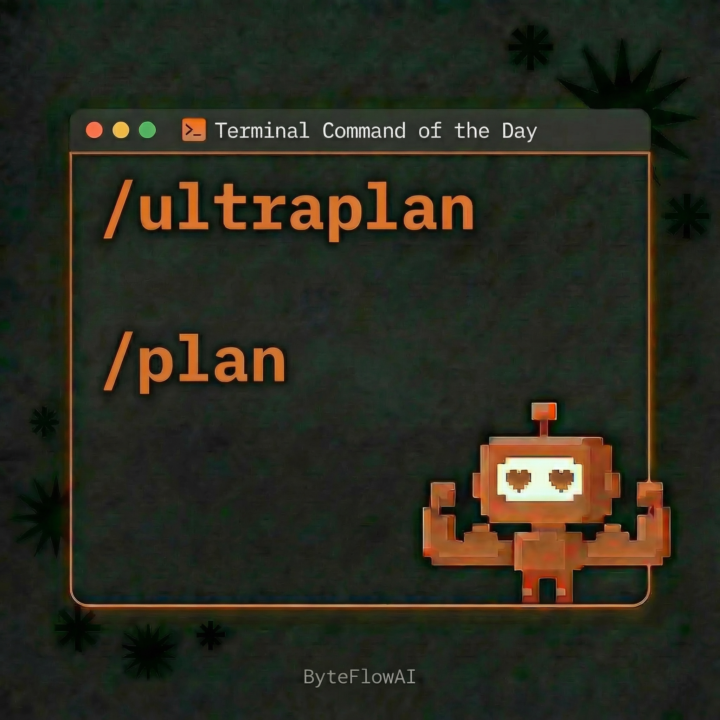
/ultraplan vs /plan How I will use them.
/plan (local plan mode) -- runs in your terminal, Claude reads your local codebase, drafts a plan before touching files. Terminal is occupied. */ultraplan -- hands the planning task to a Claude Code on the web session running in the cloud. Opus drafts the plan remotely, your terminal stays free, you review in browser with inline comments, then choose to execute on the web (PR) or teleport the plan back to your terminal. The meaningful differences for your workflow: - Requires GitHub repo + Claude Code on the web account - Snapshot at launch -- local changes after trigger aren't reflected - Three execution paths on approval: implement in cloud session, teleport to terminal, or save to file - Remote Control disconnects when ultraplan starts (both use the same claude.ai/code interface) *Currently in research preview, so treat it as unstable.
1 like • 3d
Thanks @Matthew Sutherland !
🔥
4d •
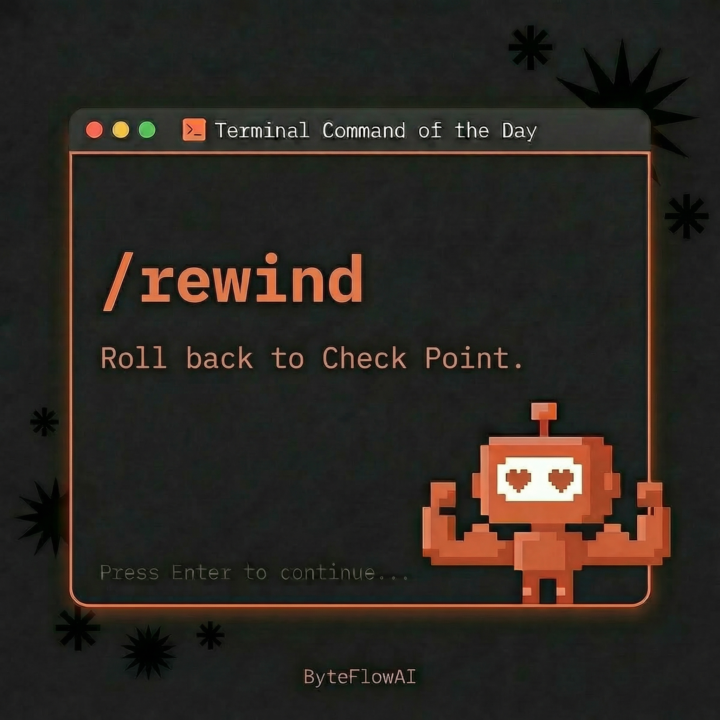
/rewind — Terminal Command of the Day
Tonight Claude was about to do exactly the right thing. I typed /rewind to stop it. I was working on Athena, my executive assistant agent. The plan was already built. I wanted to run Ultra Plan against it (a hardening pass that stress-tests an existing plan instead of generating a new one). Claude misread the room and started executing the original plan from scratch. Not broken. Not hallucinating. Doing the wrong job confidently. Old me would have let it finish and untangled the duplicate work after. Or killed the terminal and lost the context. Tonight I typed /rewind, picked the checkpoint from before Claude started executing, changed directories, opened the right agent, and ran the hardening pass instead. 30 seconds, total recovery. Here's the shift in my head: confident wrong work takes twice as long to clean up as it took to generate. /rewind is the cheapest insurance policy in the entire Claude Code interface, and most people are still treating it like a panic button instead of a steering wheel. Three things worth knowing about /rewind: 1. Double-tap Esc does the same thing. Slash command or keystroke, your call. 2. When you pick a checkpoint, you get three restore options: code + conversation, conversation only, or code only. The conversation-only option is the sleeper. It rewinds the messages while keeping good file edits Claude made on the wrong path. Redirect the conversation without losing the work. 3. It does not track files touched by bash commands (rm, mv, cp) or manual edits outside the session. Direct Claude edits only. Plan accordingly. Three states every Claude Code session lives in: - Exploring: you don't know what you want yet - Building: you know exactly what you want - Redirecting: Claude is about to do the wrong right thing /rewind collapses redirecting from "stop, explain, re-prompt, hope" into one command and a checkpoint pick. I run 6 to 10 Claude Code sessions a day building client automations. The biggest unlock of the last three months wasn't a new model or a new MCP server. It was learning to redirect inside a session instead of restarting one.
1 like • 3d
Super helpful breakdown. Thanks @Matthew Sutherland mat
3d •
Hi there!
Having seen a bunch of other people I'm following in this community I've joined to check it out too. Look forward to chatting.
1-5 of 5