
Write something

Mar 18 •
在AI驱动的丰饶时代 -- 怎样做唯一不可被自动化的自己
当传统的“职业”和“货币”体系在未来十年发生坍塌时,你真正能持有的“硬资产”是这八样: - Soul (核心热爱) 只做点燃你激情的事,因为常规工作将被自动化取代。当 AI 能以极低成本完成所有平庸的、重复性的任务时,只有你真正热爱并投入其中的东西才具有内生动力。这不是情怀,而是因为在未来,“为了谋生而工作”的外部驱动力会彻底瓦解。 - Opportunity:别再指望一份技能吃一辈子。现在的核心竞争力是随时切换赛道的能力。保持一定的资源和精力冗余,用来探索技术断裂带带来的新机会。 - Unique Edge (差异化特质) AI 擅长的是大规模的逻辑整合,它提供的是“标准答案”。你不可被替代的价值在于你的个人经历,审美,独特性和直觉。越是数字化的时代,这种“人味儿”带来的差异化就越值钱。 - Love (深度连接) 在物质极大丰饶的假设下,社会地位和财富的边际效用会迅速递减。真正能提供长期幸福感和安全感的,依然是高质量的人际关系——家庭、伙伴和核心社群。 - Purpose (长期使命) 未来最稀缺的资源不是金钱,而是意义感。能活得好的人,通常是那些能通过解决实际问题、为真实的人类创造价值,并从中获得反馈的人。 - Abundance (丰饶思维) 我们要面对的是一个“通缩”的未来,这意味着很多昂贵的资源会变得极其廉价。不要再用稀缺心态去囤积,而要学会利用这些低成本资源去构建和创造。 - Calmness (内核稳定) 这是最关键的一条。未来的信息噪音会呈指数级爆炸,各种“末日论”和“暴富论”会轮番轰炸。掌控自己的神经系统,保持情绪稳定,是做出正确决策的前提。 - Time (时间跨度) 如果技术真的能显著延长寿命,那我们的决策周期就不能再以“季度”或“年”来计算。我们需要以几十年甚至更长的维度去思考投资、事业和遗产。
8
0

Jan 2 •
定期journal工具分享-IOS快捷指令
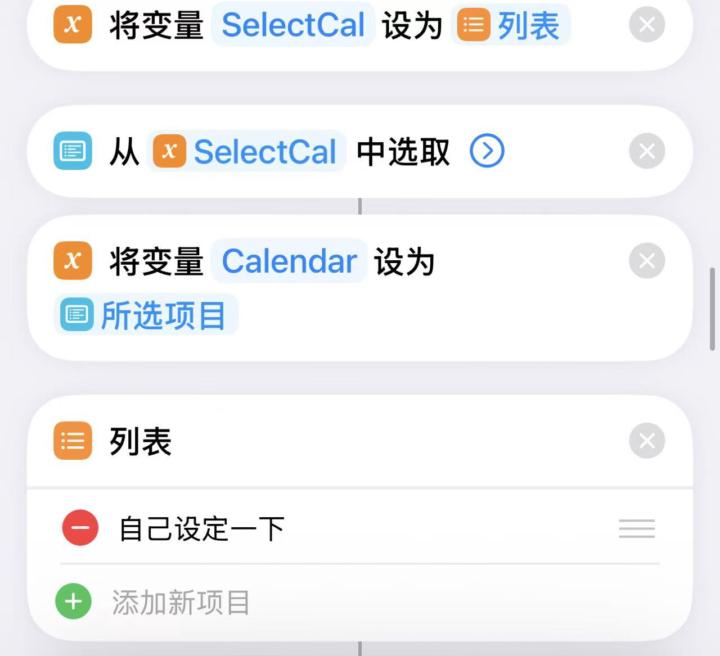
元旦参考小红书intoblue的模板写了一下对4-hour的每日复盘快捷指令,提供AI版和非AI版。AI版底层采用字节豆包1.6模型。 AI版包括以下功能: 1、计算今年已过日期百分比; 2、自动化询问复盘问题; 3、track今日calendar和not to do list的实现情况; 4、将2、3发给大模型并返回行动建议; 5、将plan问题里的计划自动添加到明天日历里(注意得写得很详细,时间+事情名字) AI版本需要参照文件配置: 1、https://acn7cxffor2h.feishu.cn/wiki/HK7Qw8OowiDhPVkK2L5cAviDnIb 2、打开快捷指令自定义你的not to do list. 3、如果有需要可以自己写系统提示词,让豆包更符合你的个人化需要(OPTIONAL) 非AI版包括以下功能:1、计算今年已过日期百分比;2、自动化询问复盘问题; 不需要进行配置,获取后直接用就行。 AI版获取链接:https://www.icloud.com/shortcuts/5e8ab89ab7644fdca56e3a867d5ec460 无AI版获取链接:https://www.icloud.com/shortcuts/6c47a1f09110479ea7e985d49eb94200 2026继续前进🕊️
Sep '25 •
当下这个时代最具威胁力的人是谁呢
一个领导了一支AI军队的个人创业者,包括ChatGPT,Midjourney,Notion,Zapier,同时还需要有足够的使命感。 不需要融资,不需要团队,只需要6个月的all-in focus,就能把传统公司甩在身后。
6
0
Aug '25 •
如何用Mac一边用AirPods看视频,一边让Otter.ai实时转录文字稿
在工作和学习中,我经常需要一边看视频,一边用AirPods听音频,同时让Otter.ai帮我把内容转成文字,方便后续整理笔记和复习。经过反复尝试,我终于找到一个稳定好用的方案,借助 BlackHole 虚拟音频设备和Mac自带的 音频MIDI设置,实现了声音“分流”:视频声音一边进AirPods耳机,一边传给Otter.ai进行精准转录。 下面是详细的操作步骤,供大家参考: 1. 安装BlackHole虚拟音频设备 访问官网:existential.audio/blackhole 下载并安装。 这里推荐免费版的2通道(2ch)就够用了。 2. 打开音频MIDI设置 打开 Finder → 应用程序 → 实用工具 → 音频MIDI设置,或者用快捷键Command + 空格,搜索“音频MIDI设置”打开。 3. 创建多输出设备(Multi-Output Device) 点击左下角的“+”按钮,选择“创建多输出设备(Create Multi-Output Device)”。 新设备会出现在左侧设备列表。 4. 配置多输出设备 右侧面板中,勾选你的AirPods和BlackHole 2ch两个设备。 将AirPods设置为主设备(Master Device),保证音量优先输出到耳机。 5. 设置系统音频输出 打开“系统偏好设置” → “声音” → “输出”,将输出设备切换为刚刚创建的“多输出设备”。 6. 设置Otter.ai的音频输入 打开Otter.ai(桌面版或网页版),进入麦克风设置,选择BlackHole 2ch作为音频输入设备。 7. 播放你的视频或音频 此时系统声音会同时发往AirPods和BlackHole,Otter.ai通过BlackHole捕捉到电脑的内部声音,实现准确转录。 8. 确认权限设置 确保macOS系统已授权Otter.ai访问麦克风权限,如果用的是网页版,还需检查浏览器麦克风权限设置。 通过这个方法,我能轻松享受用AirPods听视频的自由,同时让Otter.ai自动把内容转成文字,大大提升了学习和工作的效率。如果你也有类似需求,不妨试试这套方案!
Jan '25 •
如何用 MacBook 的 QuickTime Player 录屏并录制内部音频?
How to screen record with internal audio on QuickTime Player on Macbook 有的时候我需要把电脑上的视频录下来,并采用内部audio,以下是一个可行的solution。 Step1: search “Quicktime player” → “cancel” when the pop up shows Step2: “File” → New Screen recording → “record entire screen” → option → “save to desktop” Recording use internal audio: step 1: download a plugin for QuickTime: https://github.com/ExistentialAudio/B... option 1 → Download the latest installer Get email to download blackhole → download “blackhole 16ch v0.2.10” → install step2: search “audio midi setup” click “+” sign → create aggregate device select “blackhole 16ch” and “build-in microphone”, select “build-in microphone” so you can hear yourself when play. → change the name to “Quick Time Input” step3: “+” sign → “create multi-output device” → select “built-in output” (first) and “blackhole 16ch” → change name to “screen recording audio” step4: search “system preferences” → sound → output → change it to “screen recording audio” step5: QuickTime player → option → choose “Quick Time Input”
0
0
1-5 of 5
powered by

skool.com/bravesolutions-3839
从迷茫到自由:半年找到方向和路径,两年实现时间与财富的自由!
在这里,你将获得:战略指引,清晰路径,实操方法与高能量支持。
高价值课程,高质量分享,定期答疑,在线讨论与挑战行动,带你从迷茫到行动,从困局到自由。
欢迎添加 Wendy 微信:WendyD1051,我朋友圈的内容非常丰富。
Suggested communities
Powered by