
Write something
Pinned

Jul 13 •
The part gurus never show
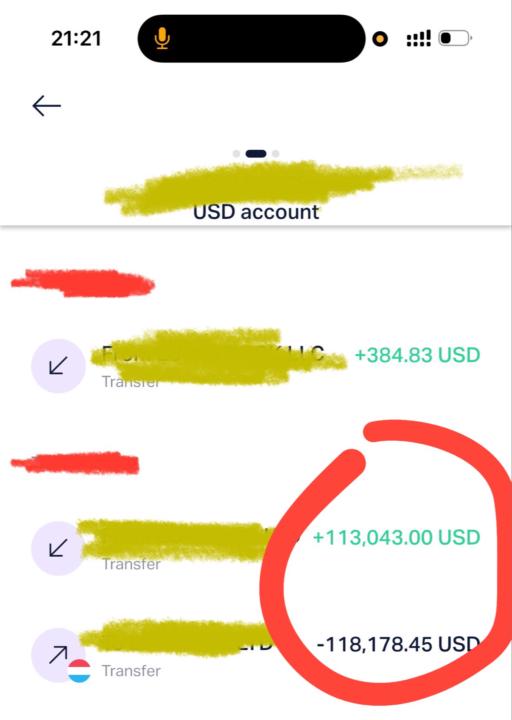
The fake guru version of this week: “$500k revenue.” “Bought another Lambo.” “Life is amazing.” The real version of my week: - Lost $5,000 in banking fees because a payment for an AI porn generator I’m building got blocked and sent back. - Lost 2 Instagram accounts because I verified them too late. - YouTube deleted a video I spent 6 hours making.It’s Was I pissed? Absolutely. But here’s what happened next. I transferred the money again. Created 2 new Instagram accounts. Recorded the YouTube video again. Nothing changed except I kept moving. That’s what I hate about social media. Everyone only posts the wins, so people think successful businesses run smoothly. They don’t. You take L’s constantly. Accounts get banned. Payments fail. Videos flop. Deals fall through. The difference isn’t that successful people avoid problems. The difference is they don’t let problems stop them. I’d rather lose money chasing something I believe in than spend my life wondering what would’ve happened if I’d actually gone all in. If you’re looking for a course where I only show the highlights, this isn’t it. Inside the community, we share the wins, the mistakes, and everything in between—because that’s what building a real business actually looks like. If that sounds like the kind of people you want to learn from, you know where to go https://www.skool.com/ai-model-factory
Pinned
Aug '25 •
New members: START HERE 💸
Welcome to the Free AI OFM Course! Comment below: What’s your income goal with AI models in the next 30 days? Once you've commented below... 👉🏼Access our free resources to get started


Dec '25 •
How to make AI videos that look realistic asf!🥵
Important Note:Now I'm gonna show you how to make videos. Check out my previous post (it's very important!!!!!) to understand this one. The process is similar, but we are going to do something different. Step 1: Get the Reference Frame First of all, download a video you like. I took a Sophie Rain video as an example (Second video). Next, go to this website: https://mixilab.com/toolkit/frame-extractor. This website extracts a frame from the video (we do this so our AI influencer matches the video vibe perfectly). Pick a frame where she is fully posed and you can see her whole body. (Last pic) Step 2: Generate the Base Image Now, do the same thing we did in the previous post (using Higgsfield/Nano Banana). Upload the video frame you extracted first, and then the pic of your AI influencer. (Second pic) Now just type this prompt: Keep the lighting, location, and pose from Image 1, but replace the person with the girl from the image where she is wearing [the outfit of your AI influencer] (image 2), ensuring her facial features and body structure are preserved. Also make sure to keep the outfit from Image 1 on the replaced figure. Hit generate. Step 3: Animation When the result is done, this is the most important part. Go to this website:https://www.runninghub.ai/?inviteCode=jiax64ih, and login with Google. This is a website where you can run ComfyUI workflows for free with credits. We are going to use this to animate our AI influencer using Wan 2.2 Animate. Credits Tip:When you're signed in, you get 100 credits per day. I also think you get 500 free credits for logging in, so you should have around 600 credits right now. Try having multiple accounts to generate more videos in case your credits run out. Also, even if you have like 5 credits left, you can still generate a video (even 20 seconds long). Basically, having low credits isn't going to stop you from making a full video.


Mar 18 •
How to make NSFW videos ComfyUI
STEP 1 — Set Up ComfyUI with a GPU To make videos in ComfyUI, you need access to a GPU. The easiest method is using a service like RunPod, where you can rent one cheaply. Load a pre-built workflow (such as version 1.2.2) so you don’t have to configure everything manually. This setup lets you generate videos locally without relying on expensive platforms. STEP 2 — Download the Right LoRA Models Your results depend heavily on the models you use. For video generation, you need LoRAs for consistency. Most workflows require both a high noise LoRA and a low noise LoRA. These work together to produce stable outputs. If they are missing or mismatched, your workflow will either fail or generate poor results. STEP 3 — Set Up the Workflow Upload your base image (your character), then assign the models correctly. The high noise model goes at the top, and the low noise model goes at the bottom. Load your LoRAs into the correct nodes. This step is critical—if something is placed incorrectly, the video won’t render properly. STEP 4 — Use Proper Prompting Each LoRA comes with specific trigger words. These must be included in your prompt or the model won’t activate correctly. Start with simple prompts using the trigger words, then add details later once everything works. Overcomplicating prompts early usually leads to worse outputs. STEP 5 — Generate the Video Start with lower resolution (like 480p) to test quickly. Once everything works, increase to 720p for better quality. Higher resolution improves realism but increases render time, so it’s best to test first and scale up after. STEP 6 — Upscale the Output After generating your video, use an upscale step to improve sharpness and detail. This significantly enhances realism. It takes more time, but the difference in quality is noticeable and usually worth it. STEP 7 — Fix Common Issues Most problems come from incorrect setup. Errors usually mean the high/low noise models are mismatched. Poor quality outputs often come from wrong LoRAs or missing trigger words. If downloads are slow, use direct links instead of uploading files manually.

1-30 of 1,385

skool.com/ai-ofm-course
Learn how to create and grow AI models from scratch.
Includes the free starter course and community access.
18+ Only
Leaderboard (30-day)
1

+6
2

+5
3

+2
4

+2
5
+1
Powered by