
Write something

4d •
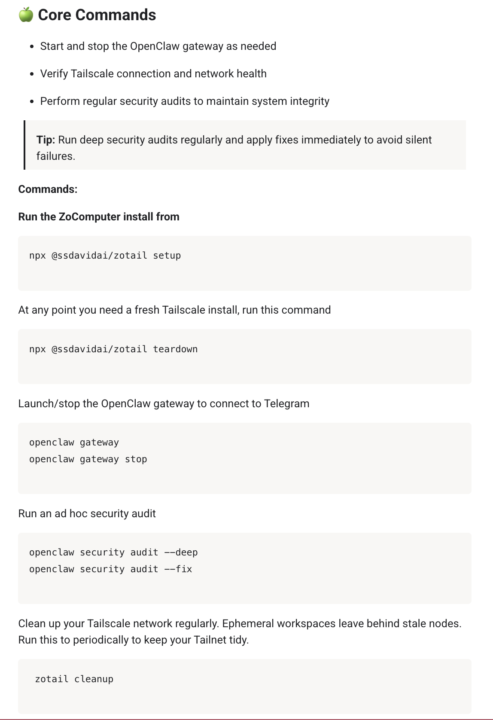
Here is the simplest set of commands to run your OpenClaw
New here and overwhelmed by OpenClaw setup and installation? Don't worry, you're not alone. It's a beast of a system but once you punch through the initial setup, everything becomes clearer Here is the must-have collection of commands to run your agent team, straight from our guides in the Classroom (see attached image). It covers installation steps, opening and maintaining your gateway with your agents through Telegram, and network health. Probably the biggest bang for your buck if you needed everything in one place. We have this in the Classroom right now, ready to follow in a full step by step guide. Check it out here and as always ping us with your installation, troubleshooting. and build questions, happy to help. https://www.skool.com/moltbot-builders-club-7244/classroom/14b4d86d?md=c0aff4632107409babc9b9ba1811b928
2
0

22d •
TasteClaw — Reverse-Engineer Any Website's Design DNA
New OpenClaw skill for the community members: 𝗪𝗵𝗮𝘁 𝗧𝗵𝗶𝘀 𝗦𝗸𝗶𝗹𝗹 𝗗𝗼𝗲𝘀 You give it a URL. It gives you: {domain}.md — the complete Design Map (exact colors, type scale, spacing, shadows, radii, grid) + Taste DNA (WHY the designer made each choice and what they rejected) {domain}.json — machine-parseable version for downstream tools Not vibes. Not "clean and modern." Actual px values, hex codes, and design trade-offs. Example: Run /taste https://linear.app and you'll get the exact font hierarchy, the 8px spacing rhythm, the shadow layering strategy, and WHY Linear chose monochrome icons over colorful ones. 𝗪𝗵𝘆 𝗧𝗵𝗶𝘀 𝗘𝘅𝗶𝘀𝘁𝘀 AI coding agents are terrible at design. They default to Inter font, blue buttons, 8px border-radius, and a card grid. Every AI-generated landing page looks the same because the agent has no taste — it just picks defaults. The Taste skill fixes this. Instead of "make it look good," you say "use the design DNA from stripe.com." The agent gets exact tokens AND understands the design philosophy behind them. Core insight: Design tokens alone are useless. "Spacing is 8px" means nothing. "Spacing is 8px because the designer chose readable rhythm over data density" — that's what makes an AI generate good design for a DIFFERENT page. 𝗛𝗼𝘄 𝗜𝘁 𝗪𝗼𝗿𝗸𝘀 Phase 1 — Capture: Playwright browser loads the URL, takes viewport + full-page screenshots, runs DOM extraction (colors, typography, spacing, cards, grids, effects). Phase 2 — 4-Step Analysis Pipeline: Step 1 (Measure): 20 categories of precise measurements from the screenshot + DOM Step 2 (Pattern): Detect systematic rules (8px grid? 1.25× type scale? accent used only on CTAs?) Step 3 (Taste): 4 design trade-offs — what they chose AND what they rejected. At least one must be a restraint trade-off (something they deliberately didn't do) Step 4 (Observer): Critique everything. Delete generic claims. Converge to 3-4 bulletproof principles. Anti-Slop Enforcement: The pipeline actively rejects "clean," "modern," "sleek," "elegant" — banned at the grep level. If it passes through, the file fails audit.
28d •
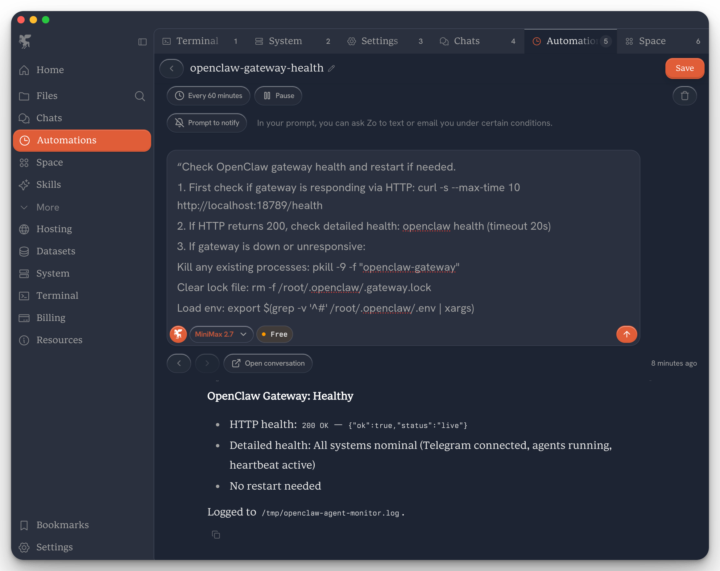
Has everyone set up the auto gateway health check for your agents?
Hey builders, if you haven't already, head to your Zo space and quickly set up the auto gateway health check for your agents. It will schedule periodic health checks every hour on your access gateway to your agents from your Zo Computer space to ensure it's always running. Takes 5 mins, saves hours of frustration and maintenance STEPS 1. Head to this module in the Classroom https://www.skool.com/moltbot-builders-club-7244/classroom/5f51254d?md=83988a21fe4341f493ec0b5d06e7a8ab 2. Scroll to the section 'Step 2: Optimise Your Claw - Automate periodic OpenClaw gateway health checks' 3. Follow the instructions Then you get a Telegram notice of every report ( see images) ❌ If down, kill the session and restart a fresh one to reconnect your agents ✅ If running, continue with the current session Ping if you get stuck, I'll walk you through it.
0
0

May 26 •
How I auto-draft 24 demo follow-ups before lunch
Last week I ran 24 demos and sent zero follow-up emails. Not because I forgot, but because writing them one by one is a 40-minute slog I kept pushing to tomorrow. So I wired it up in n8n. Here is the build. Airtable holds a Demos table with fields for prospect name, pain point, and demo date. The trigger is an Airtable node watching for any record where status flips to "Demo Done." That fires an n8n workflow that pulls the row, drops the name and pain point into a prompt, and sends it to an AI node to draft a personalized follow-up. The draft lands back in Airtable in a "Draft Email" field, ready for me to skim and approve. I review all 24 in about five minutes instead of writing for forty. The AI handles the personalization; I keep the final say. Copy it: one Airtable trigger, one AI node, one update-record step. What is the one follow-up task you keep putting off that a trigger could handle?
0
0
Mar 26 •
Beginner course: Modules 0-4 are LIVE in Classroom
If you just joined — start here. This is the foundation everything else builds on. Jump to the course Here's what's available right now: Module 0 — First Steps: Before your agent does anything, read this. Covers what OpenClaw actually is, how to think about it before you configure anything, and the decisions that shape everything downstream. Then pick your setup path: - Install on Zo.computer (VPS) — recommended if you want automations running 24/7 - Install on your local machine — fastest way to get started today - Run the setup wizard - Full OpenRouter walkthrough — connecting all models through one API key Module 1 — Core Setup: Connecting Telegram so your agent can reach you. Then fixing the security issues that most people skip — before they become problems. Module 2 — Getting to Know Your Agent: The onboarding process that actually works. How to introduce yourself to your OpenClaw so it understands your work, your goals, and how you think. This is what separates a generic agent from one that feels like yours. Module 3 — Installing Skills: The full Clawhub skills guide. What to install, what to avoid, and the 4-step protocol before you run anything on your machine. Module 4 — Email: Setting up Agentmail and giving your agent its own inbox. Why Gmail is the wrong choice and what to use instead.
1-9 of 9
powered by
skool.com/moltbot-builders-club-7244
Master OpenClaw and other personal AI Agents (Hermes Agent, Claude Code). Build AI employees that run 24/7 to save hours and generate real income.
Suggested communities
Powered by