Activity
Mon
Wed
Fri
Sun
May
Jun
Jul
Aug
Sep
Oct
Nov
Dec
Jan
Feb
Mar
Apr
What is this?
Less
More
Memberships
Clief Notes
23.4k members • Free
Tech Snack University
18.6k members • Free
9 contributions to Clief Notes

6h •
Level 2!!
Made it to Level 2!! I'm working on some ideas and folder structures that I'd like to share. Are we allowed to share github repo's here? Not sure of the rules, couldn't see any posting guidelines.
0 likes • 6h
Thanks for the reminder. I'll go back and check the intro material.

8d •
From 2 Hours to 10 Minutes: First Major Automation Win
This is my first major win applying what @Jake Van Clief ef teaches. Since subscribing to Claude Code on March 19th, I’ve been able to show so much progress that my company has now upgraded me to the Max 5x subscription. Looking forward to pushing the boundaries of what’s possible and continuing to improve our processes! As a Finance Manager responsible for month-end closing, I wanted to see what Claude Code could actually achieve—and it delivered! Even without Azure or backend access to our ERP system (D365 F&O), I didn't let that stop me from being "efficiently lazy." Claude Code showed me how to use the Playwright MCP to control Chrome and handle the heavy lifting for me. The script now automatically downloads the monthly trial balance, populates an Excel template, identifies discrepancies via color-coding, and even takes screenshots to document numbers from various reports. I’m already tackling my next big automation project—a task that is notoriously tedious when done manually. Stay tuned for that post, as well as more month-end automation updates in the near future! I had Claude code describe the workflow: Common Reconciliation — Monthly Close Automation with Claude Code + Playwright MCP Every month-end I run a single slash command (/mec-common) and pass it a month number. Claude then drives the entire reconciliation process end-to-end, touching both a live D365 ERP system and a multi-sheet Excel workbook — no manual steps. The workflow in three phases: Phase 1 — Trial Balance Claude navigates to the D365 Trial Balance page, clears any stale filters, sets the correct date range, triggers a recalculation, and downloads the export. The Excel file is placed in the right folder, and the data is pasted (values only) into the reconciliation workbook's Trial bal D365 sheet. A full workbook recalculation is then forced before anything is read. Phase 2 — Revaluation Check Claude loops through ~50 reconciliation sheets. On each sheet it finds the last row where column C says "Revaluation" (there are two — the second one holds the actual diff) and reads the value in column G. If the diff is outside ±1, the sheet tab is colored red. One sheet (150070) is always flagged red and requires manual review regardless.
0 likes • 1d
What a win. It's always a good feeling to get the acknowledgment from the higher ups.

6d •
1st App done! Whoa…
Completed a HABIT Tracking app. “Set your daily HABITS you want to improve on and let the 8th wonder of the world, COMPOUND INTEREST , prosper you in achieving goals and creating new BETTER habits. OPTION MENU Displays your analytics from results of a week, month, quarter, etc. Steps: 1. told Claude chat what I wanted. I said it needs to be a free setup, no subscriptions or fees to start and it recommended I use GitHub, vercel and Supabase. This is to store the data it records when users check off tasks for their daily habits and tracks results. I wanted Oauth so people can login with email. Daily quotes revolving in the ui to keep up motivation. 2.told Claude chat to make me a plan to effectively build this organized and as a pro engineer. 3. Converted the chat into a short Claude Md file and a context file. 4.told it to give me a pro CS Eng folder structure and save it to my docs. 5. Pushed it to git hub and I told it to build. All from VScode we went to work…. And had more than 50% worth of tokens left, as I even used it for other ideas while it was building out task app. This was amazing. Thank you @Jake Van Clief !!! Looking forward to more content of yours. Now time to work on the UI.
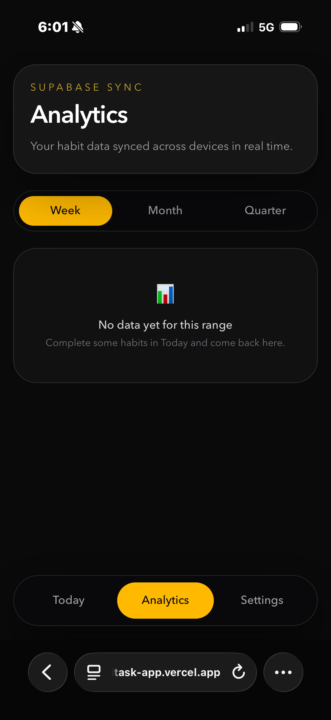
1 like • 1d
Top idea 👍

Mar 15 •
🏁 Foundations 4.5 Check-In
You just saw how context changes per task. Vote below, then tell us in the comments: what two areas of your work did you set up, and did Claude behave differently in each one?
Poll
90 members have voted
1 like • 1d
So many ideas to build out. Where to start is the biggest problem to solve!
Mar 15 •
🏁 Foundations 3.3 Check-In
Everyone gets something wrong the first time. Vote below, then drop your mistake in the comments so others can learn from it.
Poll
202 members have voted
0 likes • 1d
@Johnny Montoya From Gemini CLI would work. As long as the agent/ tool can access the file structure.
1-9 of 9

Active 2h ago
Joined Mar 14, 2026
Powered by