Activity
Mon
Wed
Fri
Sun
Feb
Mar
Apr
May
Jun
Jul
Aug
Sep
Oct
Nov
Dec
Jan
What is this?
Less
More
Owned by Angela
De-stress, up frequency vibe, integrate alternate selves, Source align, 24/7/365 happy-inside life via Angelic/ET light language/toning sound healing
Memberships
Skoolers
183.6k members • Free
2 contributions to Skool Growth Free Training Hub

🔥
Nov '25 •
✨ Loom users… I just discovered a GAME-CHANGER
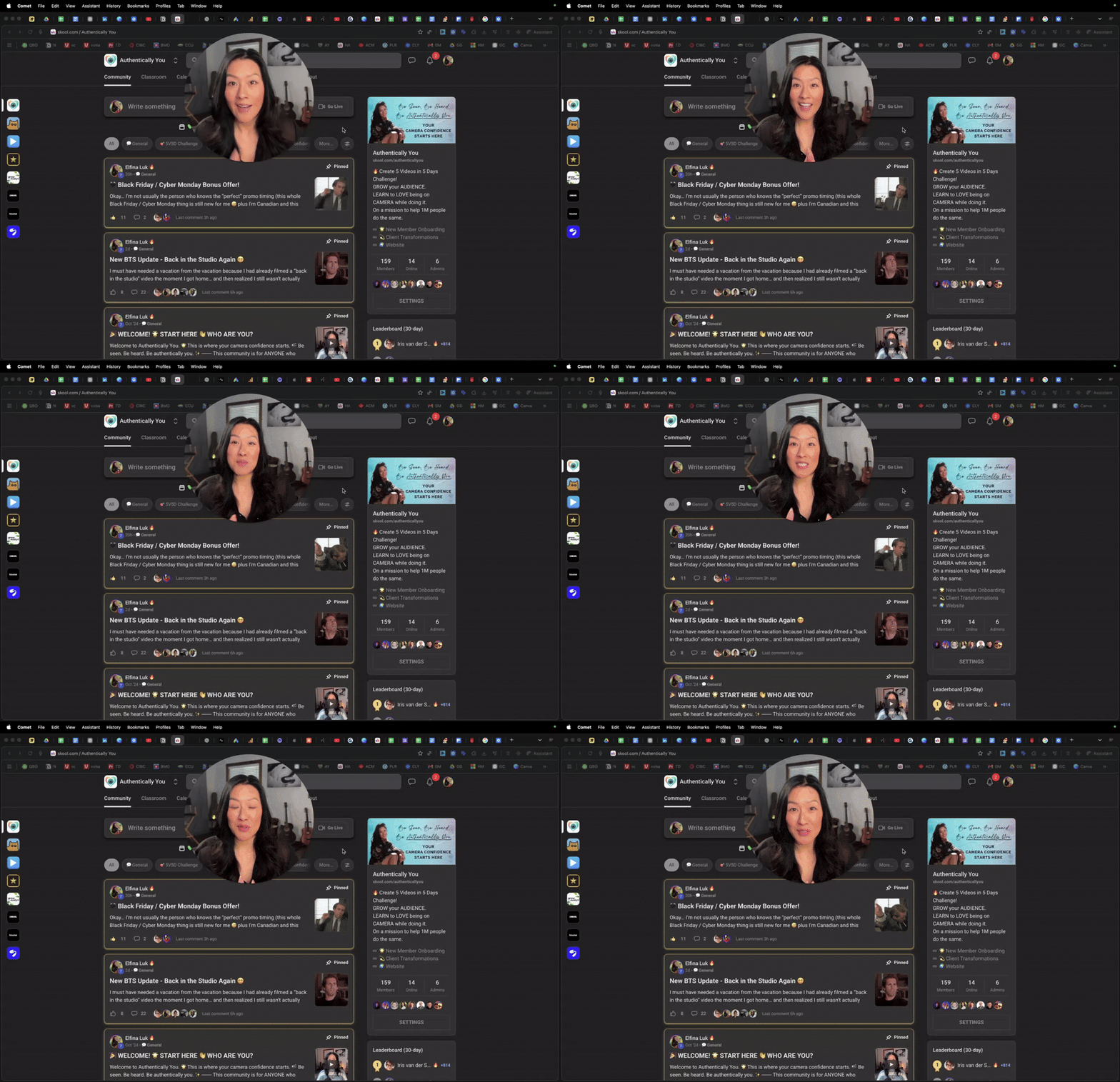
Okay, you might already know this, or maybe you’re like me and somehow missed it - but I had to share this because it’s about to make your tutorials and screen recordings SO much cleaner. If you use the desktop app (not the web version), you know that little camera bubble we all drag around the screen? Well… it does more than I thought. 👀 So this part I already use but in case you didn't know... 👉 Double-click it → boom, it jumps into full-screen mode. 👉 Double-click again → back to the circle bubble. So helpful for seamlessly filming intros and extros during a tutorial. BUT HERE’S THE PART I JUST DISCOVERED AND I AM LOSING MY MIND: If you click on the bubble (so it’s selected) and then press Command + — like you’re zooming in on a webpage… 🔥🔥 YOUR FACE BUBBLE ZOOMS IN. Like… keeps zooming. And zooming. And zooming. Until you are basically a cinematic close-up living your best digital life. 🤣🤣🤣 I show you in this video below - pardon my geeking out moment! I had no idea this was possible. I’ve been recording looms thinking there were only small + medium bubbles… but nope. You can scale it as BIG as your screen will let you go. This is huge for teaching moments, connection, emphasis, or just making your presence feel less tiny in the corner. So if you’re recording trainings, messages for your team, or any on-screen content… 💡 Use Command + on the bubble and make yourself the star. Just a little nerdy discovery I had to pass on - and yes, I’ll be using this in every tutorial from now on. 🤓✨

🔥
2 likes • Nov '25
Thank you, @Elfina Luk 💐🎈🎶🎉🎉🎉

Oct '25 •
Thanks Evelyn - I got my first 100 members with your free strategy
I watched the YouTube video about simply using your About page image and copy as your ad, and it worked super well for my LibertyOS program, with about £5 CPA. We also copied your strategy of widening the net in terms of countries to target, getting me quite a lot of members from German and Nordic countries, rather than just UK/USA etc. My audience is quite valuable, so a £5 CPA should work fine for me.

🔥
2 likes • Oct '25
Excellent work, @Jack Jenkins Congratulations!!!
1-2 of 2

🔥
@angela-chen-shui-3812
De-stress, up frequency vibe, integrate alternate selves, Source align, 24/7/365 happy-inside life via Angelic/ET light language/toning sound healing
Active 3h ago
Joined Oct 17, 2025
Kingston, Jamaica
Powered by