Activity
Mon
Wed
Fri
Sun
May
Jun
Jul
Aug
Sep
Oct
Nov
Dec
Jan
Feb
Mar
Apr
What is this?
Less
More
Owned by AI With
Join the #1 free AI Agents for Beginners Library. Access plug-and-play Google Gemini Gems to instantly automate tasks and reduce manual work. No code.
Memberships
AI For Teachers (Free)
165 members • $9/month
Claude for Professionals
145 members • Free
AI Online Educators & Coaches
969 members • Free
Empowered AI Collective™
1.9k members • Free
Your First $5k Club w/ARLAN
26.8k members • Free
Women Build AI
3.3k members • Free
Clief Notes
22.2k members • Free
THE OUTLIERS
1.3k members • Free
AI Freedom Launch Accelerator
2.9k members • Free
5 contributions to AI For Teachers (Free)

Feb 2 •
❤️ Today’s Quick Mission
You’re going to generate a high-impact lesson plan for your toughest topic this week. 1) Paste the below prompt into Gemini or ChatGPT. New to Gemini or ChatGPT? Start here. 2) Next make sure you fill in the [BRACKETS] with your grade and topic. Then submit! ✅ Step 1: Copy the "Instant Architect" Prompt Below: "Act as a master curriculum designer. Build me a 'Diamond-Standard' 50-minute lesson plan for [Grade/Subject] on [Topic]. Organize the output into these 4 phases: 1. The Launch (5 mins): A high-energy hook or 'mystery' to grab their attention. 2. The Download (15 mins): 3-5 'Must-Know' bullet points for my direct instruction. 3. The Lab (20 mins): A collaborative, active-learning task where students do the heavy lifting. 4. The Landing (10 mins): A quick exit ticket or 'final thought' to check for mastery. Constraints: Keep it low-prep, use zero expensive materials, and make it engaging for [Describe your students, e.g., 'energetic 8th graders']." ✅ Step 2 Comment what you achieved, and what you thought! 💬 Tell Us the Details 😅 1. Comment below 'The Lab' (activity section) the AI provided you? Did it give you a great idea? Is it missing something? 2. Drop a 💎 if this saved you at least 30 minutes of prep today!😃

1 like • 2d
@Papa Joe Covill oh wow the irony.😆 And it actually made a PDF download for you? I will have to try this. In the past this has not been achievable glad to hear it worked on Gemini for you.🙏

12d •
World Language
Hi Everyone, Spanish teacher here. Any other World Language Instructors out there?
0 likes • 3d
@Jenny Rousos. Let me know how these work for you: Consider the below NotebookLM ideas: 1. Mirror, Mask, and Meaning with NotebookLM Example: Upload self-portraits by Frida Kahlo, Vincent van Gogh, Amy Sherald, and Cindy Sherman along with a few short readings on identity in art. Ask NotebookLM to help students compare how artists reveal, hide, or reinvent themselves. Then students create a Spanish mini-curation statement for their own self-portrait project using themes like cultura, emociones, familia, apariencia, and sociedad. Prompt used: You are an expert AP-level Spanish teacher and art historian. Using the sources I uploaded, explain how self-portraits communicate identity, emotion, and social context. Create a clear comparison of the artists, identify recurring themes, and give my Spanish 5 students sophisticated Spanish vocabulary and sentence stems they can use to discuss their own identities through art. How it helps: This gives seniors a stronger “why” behind the project, raises the level of class discussion, and helps them sound thoughtful instead of doing a surface-level art piece. 2. If My Portrait Could Talk with NotebookLM Example: Students upload artist statements, poems, or short memoir excerpts connected to identity. Then they use NotebookLM to help them write a first-person monologue in Spanish from the point of view of their future self-portrait. The final product could begin with lines like “No soy solo lo que ves…” or “Mi retrato guarda…” Prompt used: You are an expert Spanish language teacher, creative writing coach, and identity studies specialist. Based on the uploaded sources, help generate a first-person monologue in advanced but accessible Spanish from the perspective of a student self-portrait. Include emotional depth, imagery, identity themes, and vocabulary appropriate for Spanish 5 students. How it helps: This adds drama and voice to the project, which can pull in seniors who are checked out because it feels more personal, modern, and expressive.

8d •
Bridge Challenge
I used gemini with notebookLM to update my bridge build directions. Then I used Canva AI to make it look nicer. I took too long with Canva but it is a start. https://canva.link/s026w7xvpyeuuxz
1 like • 7d
@Therese Heidelberger I made this in Google Canvas for you: https://gemini.google.com/share/c7978ce7aa3e
10d •
New: NotebookLM Course For Teachers (⭐ NotebookLM Setup Guide)
If you have been wanting to dive into NotebookLM but have not had the time to figure it all out, I have a massive update for you.😃 Meet the new NotebookLM Course for Teachers. This module takes the overwhelm out of the setup process and transforms the platform into your ultimate tool for synthesizing research and generating personalized teaching materials. It includes my step-by-step Setup Guide, the Rule Document for highly accurate AI outputs, and a dedicated NotebookLM AI Assistant to answer your questions in real-time.🙂 If you are looking for a way to streamline your lesson planning and organize complex information effortlessly, this is your new secret weapon.🚀 ✅ How to Get it: ♥️ Premium → >> Already Unlocked in your account HERE! << 💥 Free Users → >> Access It Here + All Our Other Assistants at 50% Discount Today << If you are Premium, you can access this course immediately! Free users can upgrade using the link above to unlock instant access today only. I am so excited to see how much time you save! If you have any questions about the offer or AI courses feel free to DM me.😃
1 like • 10d
✅ How to Get it: ♥️ Premium → >> Already Unlocked in your account HERE! << 💥 Free Users → >> Access It Here + 140 AI Teaching Assistants at 50% Discount Today Here << If you are Premium, you can access this course immediately! Free users can upgrade using the link above to unlock instant access today only.🙌
0 likes • 10d
Hi @Viv L.😃 Do you have experience with Gemini? The AI Assistants I created for everyone are extremely easy to use.🙂 You can also use them with a free Gemni account, you do not need any paid accounts. If you ever need help with anything you can easily ask: here. If you have any other questions let me know.🙂
Mar 19 •
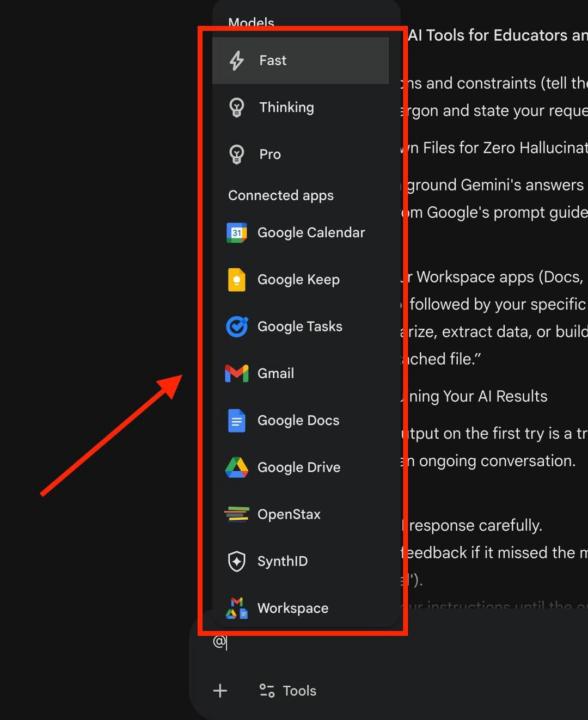
How to Increase Efficiency With Gemini's @ Action Menu
Here's how you can save hours of lesson prep and scheduling by using the "@" command in Gemini to link directly to your daily tools. ✅ Here's how I did it and you can too!: 📍 1) Manage Your Schedule and To-Do Lists Keep your teacher life organized by typing "@Google Calendar", "@Google Keep", or "@Google Tasks". You can ask the AI to check your availability for conferences, add grading blocks to your schedule, or pull up your weekly meeting notes right from your current chat screen. 📍 2) Use @ in Gemini to Connect Directly to Your Drive & Docs Quickly pull up your files by typing "@Google Drive" or "@Google Docs" right in your prompt. You can ask Gemini to summarize a specific syllabus, rewrite a lesson plan from last year, or draft a quick update to parents using "@Gmail". 📍 3) Pull From Peer-Reviewed Textbooks This is incredible for finding reliable teaching materials. By typing "@OpenStax", you connect directly to a massive library of peer-reviewed, openly licensed textbooks. Ask complex questions, and the AI will pull answers directly from verified educational resources, complete with source links. Drop Actions for the how-to use instructions. 😊 How would you like to use Gemini's action Menu in the classroom? Feel free to share your ideas below.
4
0
1-5 of 5

@ai-with-diana-5868
Helping professionals automate their business with Gemini Gems, NotebookLM, Claude, and ChatGPT. Expert in autonomous Gemini workflow creation.
Active 19m ago
Joined Mar 7, 2026
INFJ
Powered by