Activity
Mon
Wed
Fri
Sun
May
Jun
Jul
Aug
Sep
Oct
Nov
Dec
Jan
Feb
Mar
Apr
What is this?
Less
More
Memberships
Rich Credit Academy
487 members • $89/month
3 contributions to Rich Credit Academy

🚀
17d •
How to Remove Personal Information from Your Credit Report (Step-by-Step Guide)
I’m going to keep dropping these gems so yall know how to fix your own credit while going through the program 💪🏽🔥😘 💡 WHY THIS MATTERS Before we even touch accounts… 👉 Your personal information section is the FOUNDATION of your credit report Old addresses, wrong names, and outdated employers can: - Keep negative accounts tied to your report - Make disputes harder to win - Cause your report to look inconsistent 💥 Cleaning this up first = stronger disputes + better results 🔹 STEP 1: Pull Your Credit Reports Go to: - Experian - Equifax - TransUnion 👉 Or use AnnualCreditReport.com (free) ✔️ Download or screenshot your full reports 🔹 STEP 2: Log Into Each Credit Bureau You must do this separately for each bureau: - Create/login to your account - Navigate to:“Disputes”“Help Center”“Credit Report Assistance” 👉 Look for “File a Dispute” STEP 3: Enter the Dispute Portal Once inside: ✔️ Select “Start a New Dispute” ✔️ Choose the category: Personal Information 🔹 STEP 4: Review Your Personal Information Section This includes: - Names (including misspellings) - Addresses (past & present) - Employers 🚨 This is where most people rush — don’t. Go line by line. 🔹 STEP 5: Remove Old / Incorrect Addresses What to look for: - Old apartments - Addresses you never lived at - Typos or incomplete addresses What to do: ✔️ Select the address ✔️ Choose: “I never lived here” OR “This is not my address” 💡 KEY RULE: - REMOVE addresses that are:❌ Outdated❌ Incorrect❌ Not tied to active accounts ⚠️ IMPORTANT (READ THIS) If you get a pop-up saying: “This address is linked to an account” 👉 DO NOT REMOVE IT YET Why? - That address is helping “verify” that account - Removing it too early can slow down disputes ✔️ Only remove addresses NOT connected to any accounts 🔹 STEP 6: Remove Incorrect Names Look for: - Misspelled versions of your name - Nicknames you didn’t use for credit - Completely wrong names

0 likes • 6d
Just went thru and deleted 10 old addresses and old jobs!
🚀
Dec '25 •
Welcome! Introduce yourself + share a pic of yourself or family 🎉
Let's get to know each other! Comment below sharing where you are in the world, a photo of your yourself or family, and something you like to do for fun. 😊
0 likes • Mar 6
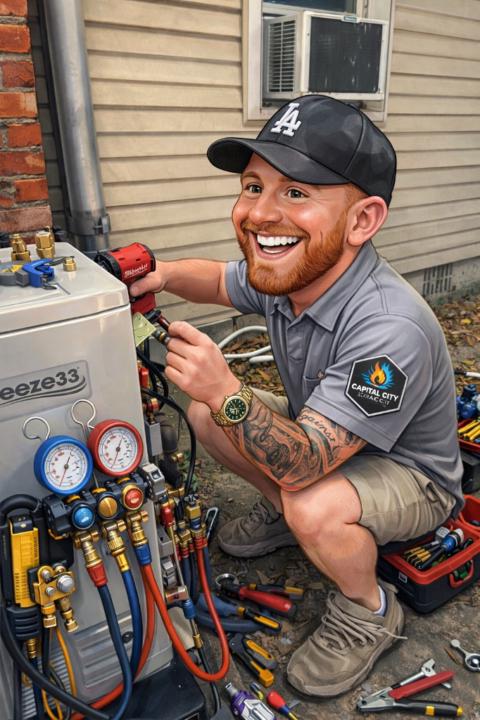
Adam , Columbus Ohio. Owner Capital City HVAC!
1-3 of 3
Active 20h ago
Joined Mar 11, 2026
Powered by