Apr 22 • General Discussion
EBONY AR: Group Review Guide
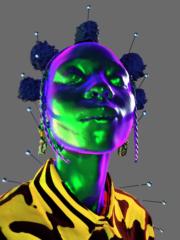
This experience uses Image Tracking AR. The technology works by recognizing a specific physical image (the "Target") and "pinning" a 3D digital sculpture and audio track to it in real-time.
1. Hardware Requirements
- Stationary Screen (Computer/Laptop): To display the target artwork.
- Mobile Device (iOS/Android): To act as the AR lens.
2. Step-by-Step Setup
Step A: Prepare the Target (The Computer)
- Open the target image on your computer screen: View Target Image.
- Ensure the image is clearly visible, not obscured by glare, and fills a decent portion of the screen.
Step B: Launch the Experience (The Phone)
- Open the mobile browser (Safari on iOS or Chrome on Android) and navigate to the hosted URL of your code.
- The EBONY landing page will appear.
- Tap the green "Enter Experience" button.
- Allow camera access when prompted.
Step C: The Scan
- Once the "Point camera at artwork" hint appears, aim your phone's camera at the computer screen showing the image.
- Hold the phone steady for 1–2 seconds.
- The 3D Sculpture will manifest over the image.
3. Points for Feedback
When the group is testing, ask them to evaluate these specific elements:
- Visual Fidelity: How does the 3D model look against the high-contrast stripes of the background?
- Stability: Does the sculpture stay pinned to the image when you move the phone slightly, or does it "jitter"?
- UI/Links: Test the Instagram and Get Prints buttons that appear at the bottom of the screen once the artwork is recognized.
2
1 comment
EBONY AR: Group Review Guide
powered by

skool.com/bridge-art-gallery-2929
Bridge Art Gallery: Your hub for professional artist development. We bridge the gap between creators & curators through exhibitions +business coaching
Suggested communities
Powered by