Activity
Mon
Wed
Fri
Sun
Nov
Dec
Jan
Feb
Mar
Apr
May
Jun
Jul
Aug
Sep
Oct
What is this?
Less
More
Agent Architects
311
5.0
$77/m
Claude Code Architects
1.7k
Free
Mobile Home Park Mastermind
361
5.0
$25/y
OpenClaw 1-Click Install
158
Free
AI for CRE Collective
802
5.0
$39/m
M1 Inner Circle
479
Free
5 contributions to OpenClaw 1-Click Install

🍀
4d •
Fix your OpenClaw bot from Claude Code: connect your server with Tailscale
I opened my OpenClaw dashboard today and one of my bots was sitting at 98% disk and 98% CPU. It had been pinned there for five days. I'm not a server guy. Normally that's a support ticket and a lot of waiting. This time I put the server on Tailscale and pointed Claude Code at it. Claude Code logged in and found one runaway log file that had grown to 22 GB. It deleted the file, restarted the stuck logger, and added a guard so the same thing can't fill the disk again. Start to finish was about 30 minutes, and most of that was me pasting output back and forth before the connection was live. 🔧 The setup → Make a free Tailscale account and install Tailscale on your own computer → On your OpenClaw server, run: curl -fsSL https://tailscale.com/install.sh | sh && sudo tailscale up --ssh → Open the login link it prints and approve the server → In Claude Code, tell it to SSH into your server with "tailscale ssh" and give it the username and machine name No SSH keys to manage and no ports open to the internet. Only devices on your Tailscale account can get in. 🚀 What you can do once it's connected → Ask why your bot is slow or down, and let Claude Code go look → Have it run the fix while you watch → Install skills on your bot → Build new skills right on the server and test them there For me this is a game changer. "Why is my bot broken?" is now a question I ask in plain English, and I get the answer and the fix in the same conversation. ⚠️ Two things to know Claude Code gets real access to your server this way. Read what it plans to run before you approve it, the same way you'd check a contractor's work. If your disk is already full, the Tailscale install will fail. Free up some room first and run it again. Drop questions below and I'll help you get connected. 👇

1 like • 3d
I've setup a project in Calude as an "advisor" where I have a new chat a "start here" document so it knows my exact setup and can help be troubleshoot any issues I'm having. Its been a game changer.
16d •
AI assistant builders: what's your Mac mini / Mac Studio setup? Looking for real-world use cases before I buy
@Michael Pansolini Hey all, I'm a real estate GP with a full-time day job and a busy family. I'm building an AI "chief of staff" to handle task follow-ups, deal screening, email drafts and team check-ins, and I'd love to learn from people who've already done it. Where I'm at: - Private vault: Mac Studio M5 Max, 64GB, running local AI for sensitive business documents - Orchestrator: one cloud server running OpenClaw as a "CEO" agent that spins up helpers (builder, QA, ops) on demand - Dev work: Claude Code - Interface: Telegram / Discord - Security: vault fully segregated; servers can never connect into it What I'd love to hear: 1. Hardware: Mac mini vs. Mac Studio? How much RAM? Would you change anything? 2. Local vs. cloud AI: which local models are actually useful? Where do you still use Claude/GPT? 3. Daily use cases: what saves you the most time? 4. Creative or weird uses: one-off automations that surprised you 5. Segregation: how do you isolate your assistant from the rest of your infrastructure? 6. Multi-agent setups: org chart of agents vs. one agent with skills? What worked? 7. Lessons learned: what would you do differently? Easy reply template: Setup (hardware/RAM): Local models I use: Best daily use case: Most creative use: How I isolate it: Biggest lesson: I'll pull everything together into a summary and share it back with the group. Happy to share what I learn as I build too.
1 like • 15d
Thank you!
Jun 2 •
Question about image generation and managing posts/scheduling
Two questions: 1) What is everyone using to manage content and posting online? I'm at the point where I have a lot of my infrastructure in place to create and develop content, I just need something to manage posting to all different platforms (LinkedIn, FB, Instagram, twitter, etc...) 2) How are you generating images and visuals for the posts on each platform?
1
0
🍀
May 7 •
Tonights Call! New Software Launch, Use Cases, and Q&A: 6pm ET
Tonight, we’re showcasing our new software and what AgenticBeaver has become! We've built a real command center for installing, multiplying, and running your AI agents! Here’s what we’ll be walking through: • A live Agentic Beaver dashboard • New instant onboarding flow • Identity controls so you can update your agent’s name, profile, and personality from one place • Skills dashboard to monitor, enable, disable, and install new capabilities • Community skills so users can share real use cases with each other • Skills browser with GitHub source links, install counts, and security audit visibility • Cron management so your agent can run scheduled work automatically • Terminal access with a cleaner user experience • Easier model install, switching, and authentication • Health dashboard to ensure your bot is running correctly This is the piece I’m most excited about: We’re moving from “one assistant that answers questions” to an actual AI operating system for your business. One place to build, manage, and scale your agent team. Tonight’s call is going to be a fun one! Make sure to join!
1 like • May 7
Sounds like a great enhancement! I've been having fun building out my "team" over the last week. {legal (MH and self storage), investor compliance, HR, insurance broker, debt and capital market advisor, market&demographics, security & marketing/content management}.
🍀
Mar 27 •
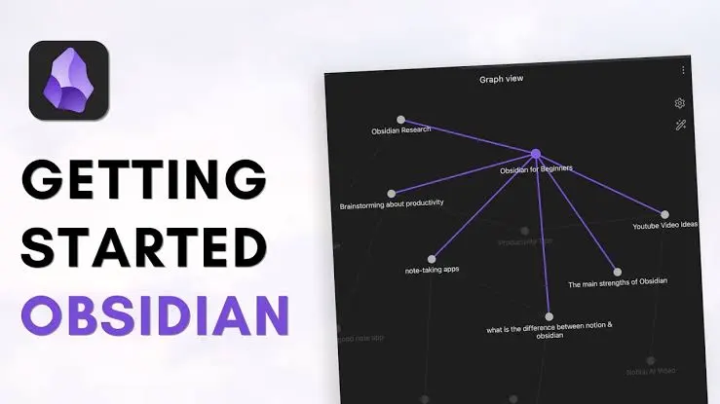
Browse Your AI's Brain with Obsidian
Just set this up and it's pretty cool. Your AI assistant stores everything in markdown files - daily logs, meeting transcripts, deal notes, long-term memory. But those files live on the server, so you never really see them unless you SSH in. The fix: sync everything to a GitHub repo, then open that repo as an Obsidian vault on your computer. Now I can browse everything R2 knows. Search across all my meeting notes. See the graph view of how topics connect. It auto-syncs every hour, so it's always current. Here's how it works: 1. Generate an SSH key on your server 2. Create a private GitHub repo 3. Add the SSH key as a deploy key (with write access) 4. Push your AI's memory and knowledge folders to the repo 5. Set up a cron job to sync changes every hour 6. Clone the repo to your computer 7. Open that folder as an Obsidian vault That's it. Now you have a local copy of your AI's entire knowledge base that stays in sync automatically. If you want the detailed step-by-step commands, I've got a doc for that - just ask.
0 likes • May 7
Hey @Michael Pansolini , can you send me over the instructions you ran for this process? Have you run into issues with AI knowledge drift? Have you found a way to ensure the memory, commands, and rules that you are developing dont get lost over time?
1-5 of 5

Active 30m ago
Joined Apr 21, 2026
Downingtown PA
Powered by