Activity
Mon
Wed
Fri
Sun
Sep
Oct
Nov
Dec
Jan
Feb
Mar
Apr
May
Jun
Jul
Aug
What is this?
Less
More
Owned by Jasmina
Your best life is ahead of you. Create the next chapter intentionally - full of freedom, purpose and joy. An early retirement on your own terms.
Memberships
LUXE INCOME LOUNGE
5.5k members • Free
Bridge To Wealth
4.5k members • Free
Living a Clutter Free Life
33 members • Free
Strong Confident Living
3.6k members • Free
AI & Outsourcing for Realtors
795 members • Free
Fit Lifestyle Freedom
47 members • Free
Skoolers
161.5k members • Free
Easy AI Content
307 members • $9/month
Motherhood Unfiltered
194 members • Free
5 contributions to How to Go Live & Sell

🔥
29d •
Tomorrow Thursday at 1pm CST in DGC!! Join me!!!
Come join us! I'll be doing a Go Live training on Thursday!! Mark your calendars and be sure to come in it's gonna be fire!!


1 like • 28d
@Donald Schaeffer If you think the ban was not fair and warranted, you can complain about it, and ask for you account to be reinstated. I know Michele gave an email somewhere in the DGC community. Ask that question there and someone will know where to find it, or put "banned on TikTok" in the community search. You get banned by AI and once a human looks at it, they may open it up for you.
1 like • 28d
Paula I am so excited for you to do it, and I am even more excited to hear it! Looking forward to it!
🔥
May 28 •
Thursday 🥵❄️ The Results Are In...
🥵❄️ The Results Are In... and Some of You Might Want to Reconsider Your Choice 😂 Yesterday I asked: 👉 Would you rather be stranded in Death Valley or Antarctica? Now for some fun survival facts... 📍 Death Valley - Temperatures can reach 130°F (54°C+) - Without water, survival may be measured in hours to a couple of days - Heat stroke can happen surprisingly fast 📍 Antarctica - Temperatures can drop below -100°F (-73°C) - Without proper shelter, hypothermia can become life-threatening within hours - BUT if you have shelter and a way to stay dry, people can survive much longer than most realize 🤔 Survival experts generally say your chances improve with: ✅ Water in the desert ✅ Shelter in the cold So the real question is... 💬 Which would you choose NOW after seeing the facts? 😂 Or are you hoping someone comes to rescue you?
Poll
5 members have voted

1 like • Jun 3
Hold on. I heard something about aliens in Antarctica? Additional item to consider. 😜
🔥
Apr 14 •
Quick question for everyone in here 👇
What is your biggest struggle when it comes to showing up on TikTok or YouTube? Drop it in the comments — I might just make a tutorial around your answer.
1 like • Apr 14
I have so many people following, liking, and sharing, and very few turning into leads.
1 like • Apr 15
Here is what I found. I hope it helps. To stop mirrored video during YouTube live recordings, toggle off "Mirror Front Camera" in your phone's camera settings (iPhone) or use third-party tools like Streamlabs to unmirror the feed. For desktop, uncheck "Mirror Webcam Video" in your streaming software or use browser extensions like CamFlip. YouTube +3 How to Fix Mirroring by Device: - iPhone (iOS): Go to Settings > Camera > toggle off Mirror Front Camera. Note that your preview might still look mirrored, but the final video/stream will not be. - Android: Open your Camera app, go to Settings, and look for "Mirror front camera," "Save selfies as previewed," or "Flip/Mirror" options to toggle off. - Third-Party Apps (Android/iOS): Use apps like Streamlabs or Prism Live Studiowhich offer a direct 'Flip/Mirror' toggle for YouTube lives. - Desktop/Browser: If using browser-based recording, use Chrome extensions like CamFlip or VideoMirror. - OBS Studio: In your settings under the General tab, ensure "Hide OBS windows from screen capture" is activated to avoid the infinite screen mirroring effect. Alternative Solution: - Rear Camera: Switch to the rear camera, which generally does not mirror video.
🔥
Apr 1 •
😄 Wednesday
Tell me this isn’t just me 😅 You sit down to work…and suddenly everything else feels important. 💬 What distracted you today?
1 like • Apr 1
Tell me about it, Paula! Definitely not just you! It's one thing when your family needs you but when you manufacture your own BS excuses and attempts at procrastination, that's way more annoying. Here are some examples. Can anyone relate? 1. My belief that I can multi-task. Yes, I can but I feel the split in my mind and it reflects on either the quality of my work, or it takes me twice as long to do it. 2. A call from a friend that I haven't seen for a long time. (Long convo - totally justified!) 3. Then I decide it's time to go shopping or workout, because I have been sitting too long, and it needs to be done anyway. I always fall into the trap - I still have a lot of time to do what I need to do later. That is the decision I always regret when I am scrambling my daily tasks at the end of the day!
🔥
Mar 16 •
TikTok Creators Stop Listening To People Say This...
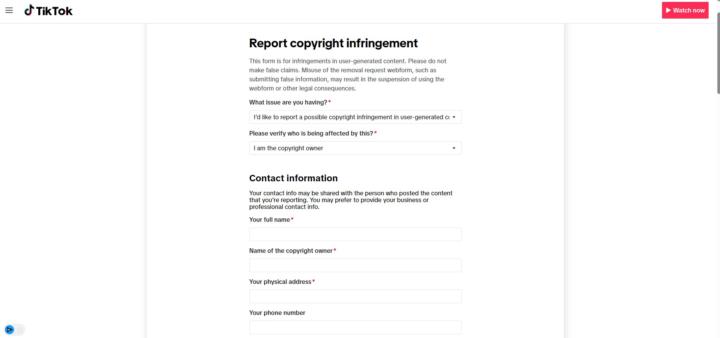
TikTok doesn't do anything about fake accounts. That's not true. Every 3-4 months, sometimes I let it slide to 6 months...I fill out the intellectual copyright infringement form and have the fake profiles taken down. I just filed one this morning. I have 3 fake accounts out there right now. I know it's a pain in the butt but it's better to stay on top of it. There is a video tutorial inside of the TikTok module inside of the classroom. You can do it from your phone or from your computer or laptop.
1 like • Mar 16
Thanks for sharing this, Paula. I didn't know about this form. I reported the account as not mine but they responded that they don't see a problem. I figured that they may not have a way to immediately see who is the real owner without a deeper research, so this makes a lot of sense.
1-5 of 5
@jasmina-balogh-1905
I help parents and empty nesters reclaim their health, vitality and time freedom, and retire early.
Online now
Joined Mar 13, 2026
Oregon
Powered by