Activity
Mon
Wed
Fri
Sun
Jun
Jul
Aug
Sep
Oct
Nov
Dec
Jan
Feb
Mar
Apr
What is this?
Less
More
Memberships
AI Automation (A-Z)
153.6k members • Free
AI Photo Booth Academy
76 members • $5/month
7 contributions to AI Photo Booth Academy

Mar 18 •
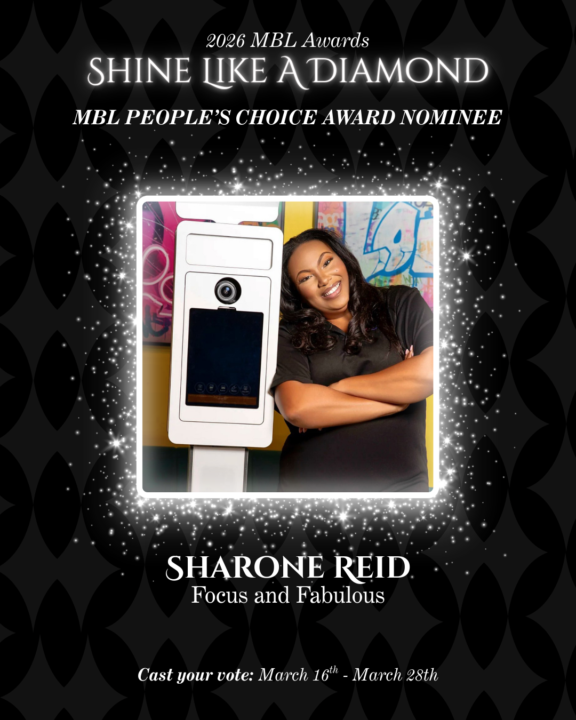
Community — I need a favor and I need you to move on it today.
I have been nominated for the 2026 MBL People's Choice Award. This is a public vote. That means it comes down to community. And this community has shown up for me in more ways than I can count. If Coach Sharone's content, coaching, or community has ever helped you book a client, raise your rates, build your systems, or shift your mindset about what is possible in this business — go vote. It takes less than a minute. You can vote every single day through March 28th. [Voting link] Drop a comment when you vote. Let me see my people show up. This is what we do.
2 likes • Mar 18
done- One vote in for today ❤️
Jan 21 •
GOT YOUR TICKET?
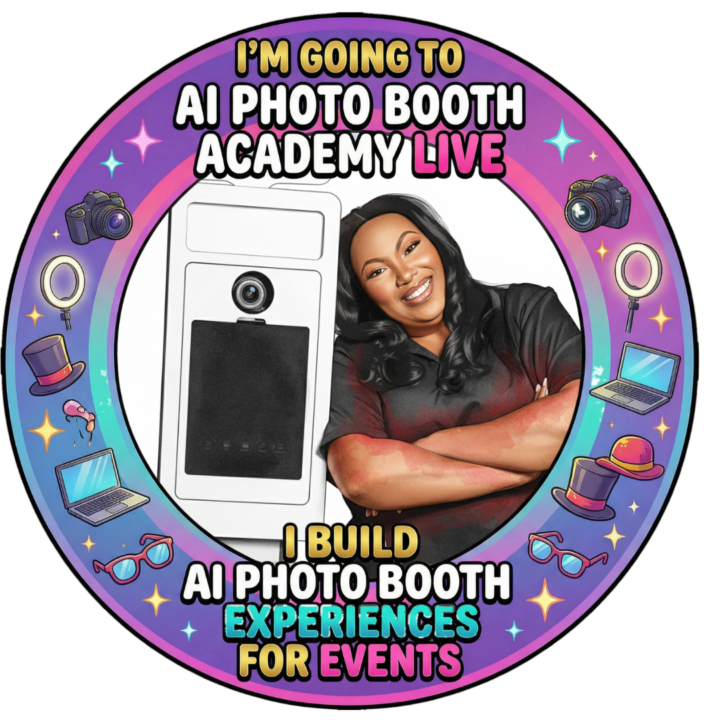
NOW GET YOUR BADGE 🎉 Create Your AI Photo Booth Academy LIVE Badge! Show the world you're leveling up your AI photo booth game! Follow these simple steps to create your personalized event badge and share it on social media. 📱 METHOD 1: Using Your Phone (Easiest!) For iPhone Users: 1.Save the badge overlay to your Photos •Download the badge frame image we sent you •Save it to your Camera Roll 2.Open the Shortcuts app (pre-installed on iPhone) •If you don't have it, download it from the App Store 3.Create a simple overlay shortcut OR use a free app: •Option A: Download a free app like "Photo Overlay" or "Superimpose X" from the App Store •Option B: Use Canva (free mobile app) 4.Using Canva (Recommended - Free & Easy): •Open Canva app •Tap "+" to create new design •Select "Instagram Post" (1080x1080) •Tap "+" at bottom → "Photos" → Select your selfie/headshot •Adjust your photo to fill the canvas •Tap "+" again → "Photos" → Select the badge overlay •Resize and position the badge overlay so your face shows through the center circle •Tap "Download" to save For Android Users: 1.Save the badge overlay to your phone 2.Download a free app: •"Photo Overlay" (free) •"PicsArt" (free) •"Canva" (free - recommended) 3.Using Canva (Recommended): •Follow the same steps as iPhone above •Open Canva → New design → Instagram Post •Add your photo as background •Add the badge overlay on top •Position so your face shows through the center •Download and save 💻 METHOD 2: Using Your Computer Option A: Using Canva (Free - No Software Needed) 1.Go to www.canva.com (free account) 2.Click "Create a design" → "Custom size" → 1080 x 1080 px 3.Click "Uploads" in the left sidebar 4.Upload your photo and the badge overlay 5.Drag your photo onto the canvas first (as background) 6.Drag the badge overlay on top 7.Resize and position so your face shows through the center circle
1 like • Jan 21
Hi Sharone! All signed up and I'm really excited about this event! As you know I'm in the process of converting to Snappic and learning the software. I want to start promoting AI graphic ideas for events to my followers. Prompts that you share for event ideas on are calls are we free to use? Do you have any guidelines on sharing that you want us to follow?
1 like • Jan 21
@Sharone Reid Thanks! You're the best!
Dec '25 •
I have sold over $20K in AI Photo Booths in 2025
As I am starting to close out the year I did a quick calculation of the number of AI Photo Booth Activations I sold in 2025 and I am just getting started, Its about to be a whole problem in 2026. I have an AI Photo Booth Event Tomorrow during the time we would have our lab. I want to take a poll would you like me to (1) capture data at event go live in the community (2) Leave you an assignment to work on individually and post results.
1 like • Dec '25
1
Nov '25 •
Have you seen Wicked?
I have been asked a few times to create an experience for Wicked theme events. I received this amazing ai prompt from Pic Pic Social Mathieu and look what it created with picture of me.

1 like • Nov '25
Will you show how you did the animated one on the next call?
0 likes • Nov '25
@Sharone Reid gotcha! Thanks!
Nov '25 •
GAME DAY FIT
I had an idea to put fans in Commanders’s gear using a designer that only does NFL attire check out my output ran it through snap paint banana real Pro with apparel as the source file

1 like • Nov '25
Ooh I love this
1-7 of 7