Activity
Mon
Wed
Fri
Sun
Dec
Jan
Feb
Mar
Apr
May
Jun
Jul
Aug
Sep
Oct
Nov
What is this?
Less
More
AI Agency Girlies
211
Free
Plugin Builder Academy™
241
Free
AI Consultant Certification
2.5k
$6,997/y
Kind & Clever Vault by Kay
147
Free
The Prompt Academy
555
$9/m
AI Mavericks
820
5.0
$7/m
BrandU | AI Branding
2.2k
5.0
Free
Lazy Sales/AI Closing Code Hub
3.2k
5.0
Free
The Alchemist Playbook™
578
5.0
Free
18 contributions to 🛎️ Content CEO Skool

Oct 14 •
There's just something about October, right?
The cooler mornings, the fall colors, the Halloween decorations, and all the little things that make this time of year so fun. But everyone has that ONE thing that makes them say, "Yep, it's officially October!" So let's have a little fun! 𝗙𝗶𝗻𝗶𝘀𝗵 𝘁𝗵𝗶𝘀 𝘀𝗲𝗻𝘁𝗲𝗻𝗰𝗲 𝗶𝗻 𝘁𝗵𝗲 𝗰𝗼𝗺𝗺𝗲𝗻𝘁𝘀: You know it's October when __________. I can't wait to read your answers!


2 likes • Oct 15
@Stevie Sullivan that is GREAT news, Stevie!! Way to be on top of your healthcare visits!!!
3 likes • Oct 15
@Stevie Sullivan Oh!! Just assumed you were one of those schedule 3 years ahead of time, and call to confirm the appointment every two months kind of girl!! 😁 Well - now you know!!! Once a year, until you are aged like me, then twice a year!!! Very happy for you — it truly is fantastic news!!
Oct 12 •
It's time for a candy showdown!
You can only save ONE candy! The other five have to go FOREVER! Which one are you keeping? Kit Kat – That crispy chocolate crunch! Snickers – Chocolate, caramel, and peanuts! Skittles – A rainbow of fruity goodness! Starburst – Sweet, chewy, and fruity! Trolli Sour Brite Crawlers – For my sour candy lovers! M&M's – The classic chocolate favorite! This might be the hardest decision you'll make all day! Drop your ONE choice in the comments! And don't say ALL SIX! You have to pick just one! Let's see which candy wins!

1 like • Oct 15
[attachment]
Sep 17 •
🛎️ Don't Forget...
Your membership level comes with promo perks. Don't let this week's promo opp go to waste! STANDARD TIER MEMBERS: ⭐️ Weekly calls ⭐️Promote your skool community once a week ⭐️ Participate in the weekend Biz promo thread ⭐️ Freebie Promo Friday PREMIUM TIER MEMBERS: $9 ⭐️ Weekly calls ⭐️ Promote Your Community or Freebies 2x/wk ⭐️ ONE paid offer 1x/wk ⭐️ Participate in the weekend Biz promo thread ⭐️ Freebie Promo Friday ⭐️ Access to the tools, resources, and trainings
Poll
2 members have voted

1 like • Oct 15
@Stevie Sullivan interested! Have to see if I am a member of this group though 🤭😀
Aug 27 •
DONE FOR YOU PRODUCT DROP 8/26/26
I've just dropped a complete DFY Product in the classroom!!! I created the cover, rewrote the inside, and added it to my Etsy shop, but as a community member, I'm giving you the exact product to sell or share as a freebie. The only thing is, you are not allowed to sell it as PLR. Here's what I just uploaded: ✅11 page PDF ebook ✅BONUS: 15 Ways to Use the Ebook in Your Business doc ✅ Extra ebook cover ✅The exact product description that I am using ✅The exact 3 email sequence that I am usig ✅The exact mock-up that I am using. This is provided in Canva so you can make the changes for your brand. Remove PLR from the mock-up and edit the Usage Rights image. UPLOAD AND SELL!!!!! Go to classroom ➡️ Done For You Ebooks ➡️ Fitness ➡️ Aerobics for Fitness After 45 As I build out my Etsy shop, VIP members will get the products that I create for free!!!!

1 like • Aug 29
Thanks for sharing, @Latashia Crenshaw !!
Aug 27 •
🛎️ Money Thursday: Give your freebie a next step
Yesterday we set up a DFY planner as a freebie and used Google Forms to collect names and email addresses. 📌 Missed DFY Wednesday? View the full activity here: https://www.skool.com/the-creative-ceo-collective-4428/dfy-wednesday-activity-promote-a-ready-made-freebie?p=bd2abefd Today we are working on what happens after someone gets the freebie. The goal is to give your freebie a clear next step that can lead someone toward a product, service, affiliate offer, or community. Step 1: Choose 1 next offer -Pick 1 thing you want someone to see after they get your freebie. -Choose something that makes sense based on what they just downloaded. Example: 📘 Freebie: Business planner ➡️ Next step they may need: Help creating business materials 💻 Next offer: Canva templates or a DFY product pack Your offer can be: -A low-cost digital product -An affiliate product -A paid Skool tier -A service -Your Skool community If you do not have a paid offer yet, use your Skool community or another resource that gives them a next step. Step 2: Add your offer to the planner -Open the copy of your planner in Canva. -Go to the last page. -Add a short message like: -Want more help with your next step? Get [PRODUCT OR OFFER NAME] here: [INSERT LINK] -Now make the link clickable. -Highlight the text you want people to click. -Click the link icon in Canva. -Paste your product, affiliate, service, or Skool link. -Save the link. Step 3: Download the updated planner -Click Share -Click Download -Choose PDF Standard -Save the new PDF -Open the PDF after it downloads. -Click your offer link. -Make sure it opens the correct page. Step 4: Replace the old PDF in Google Drive -Go to the Google Drive folder you created yesterday. -Upload the updated planner. Make sure the sharing setting is still: Anyone with the link → Viewer -Copy the new Google Drive link if the link changed.

1 like • Aug 28
@Latashia Crenshaw Thank you so much, Latashia!
1-10 of 18
@lori-telb-3065
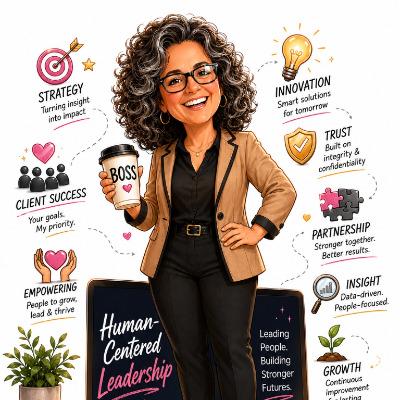
New to AI. Taking AI Agent, and AI Consultant courses. 25 years in HR, hoping to combine the 2 in some way, but will see where the journey takes me!
Active 3h ago
Joined Jun 16, 2026
Savannah, GA
Powered by